Every closed order is a chance to find out how a rental actually went. But most of the time, feedback only shows up on review maps: someone leaves one star, someone leaves praise — and you’re the last to know, long after the order is done.
It’s nice to see a good review on the map, but learning about a problem from a single star is late and expensive. And you could have spotted it earlier: you just needed to ask the customer while the impression of the rental was still fresh.
Why you should ask right after the rental
The further the rental recedes into the past, the fewer chances you have of getting an honest answer:
- after a day, the customer no longer remembers the details;
- after a week, the motivation to write anything is gone;
- reviews on maps are left either by very happy or very unhappy customers — the quiet majority says nothing at all.
Right after the equipment is returned, the customer has both a fresh impression and a willingness to answer: the rental is complete, the question “how did it go” sounds natural, and answering takes less than a minute.
A good survey at this moment does three things: you see the real state of your service, you catch problems before they become a one-star review on a map, and you get material for improvements — from customers who actually rented from you, not just walked by.
How it works in Turborent
The whole pipeline is automatic:
- an order is completed in the system;
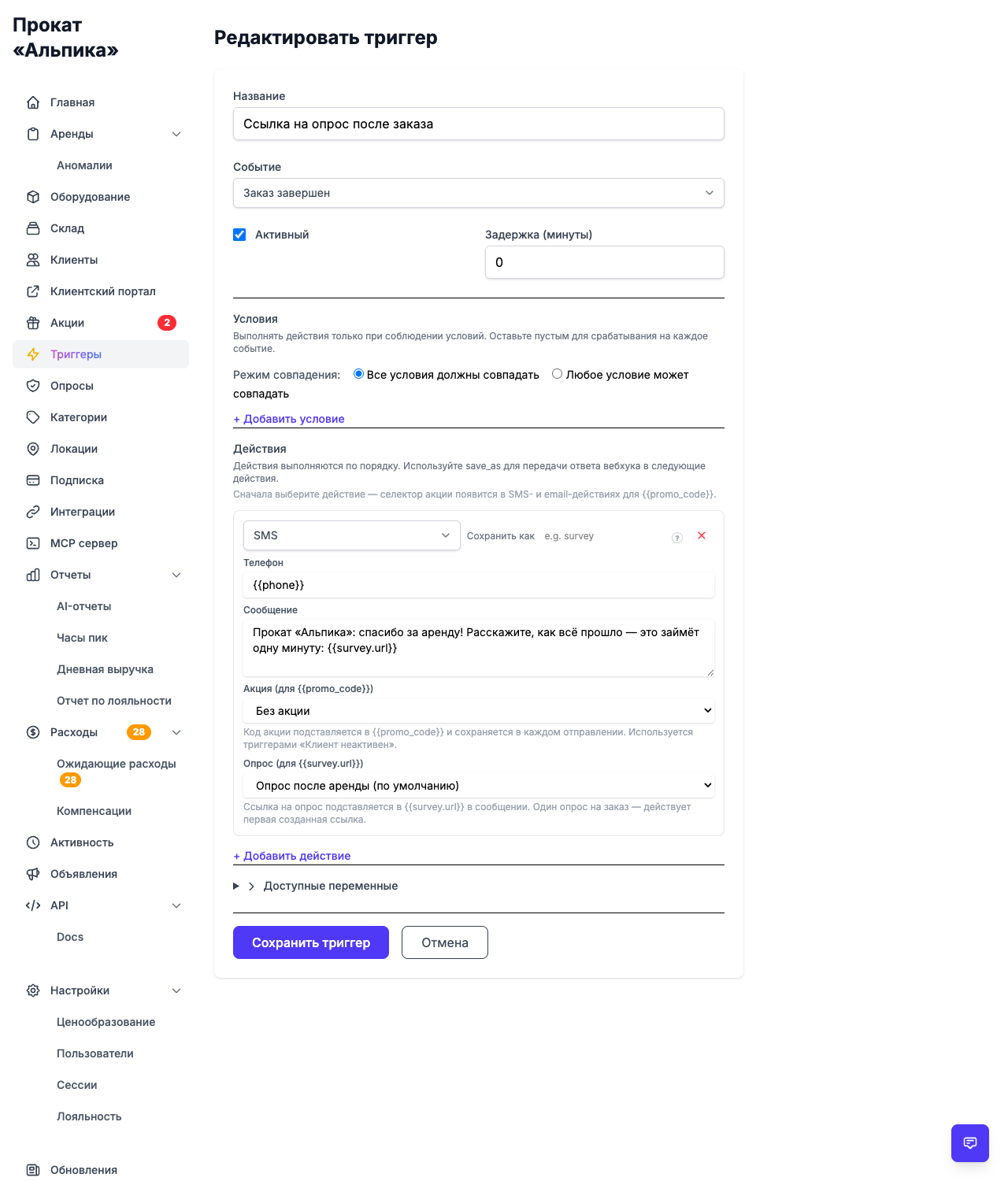
- the “order completed” trigger fires;
- the customer receives an SMS (or email) with their personal survey link;
- the answers land in the Surveys section, where you can see average ratings and a breakdown by question.
You set up a survey once and attach it to the trigger — then the system does it all itself, for every order.
Creating a survey
Surveys live in the Surveys section of your settings. Nothing complicated: a name, questions, an order. Questions come in two types:
- text — “What could we improve?”, “Tell us how the rental went”;
- rating — a scale of 1 to 5 or 1 to 10, e.g. “Rate the condition of the equipment”.
You can create several surveys — for example, a separate one for each pickup point or for each season: a ski rental and a bike rental need different questions. One of the surveys is set as the default, and it’s the one used unless you choose otherwise.
Sample questionnaire
- Rate the condition of the equipment from 1 to 10.
- Rate the speed of the pick-up process from 1 to 10.
- How can we improve our service? (text)
A ten-point scale is handy because you can use it to count not just the average, but also the share of happy customers — those who scored 9 and 10.
Sending the link automatically
To make sure your customers get the questionnaire without any effort on your part, attach the survey to the “order completed” trigger. In the SMS action (or email/Telegram action) select the survey and add the {{survey.url}} placeholder — the personal link will be inserted automatically.
Thanks for renting with us! Tell us how it went — it takes a minute: {{survey.url}}
The name of the survey can also be inserted into the text with {{survey.name}}.
Each order gets exactly one link. Even if several triggers fire or the customer opens the link a second time, the questionnaire will be the same — no duplicate responses, no repeated surveys of the same person.
What the customer sees
The link leads to a simple page that opens on any device. No registration and no phone number is required: the personal link is already tied to the order, so the customer simply answers the questions and taps “Submit”.
One link — one answer: the survey can’t be filled in twice. The answer is automatically connected to the order and the customer, so even without a phone confirmation you know who rated what — and can reach out to them if needed.
The results
All answers are collected in the Surveys section:
- an average rating for each rating question;
- a breakdown of answers by question;
- filtering by survey — for example, a specific pickup point only;
- CSV export for analysis in spreadsheets.
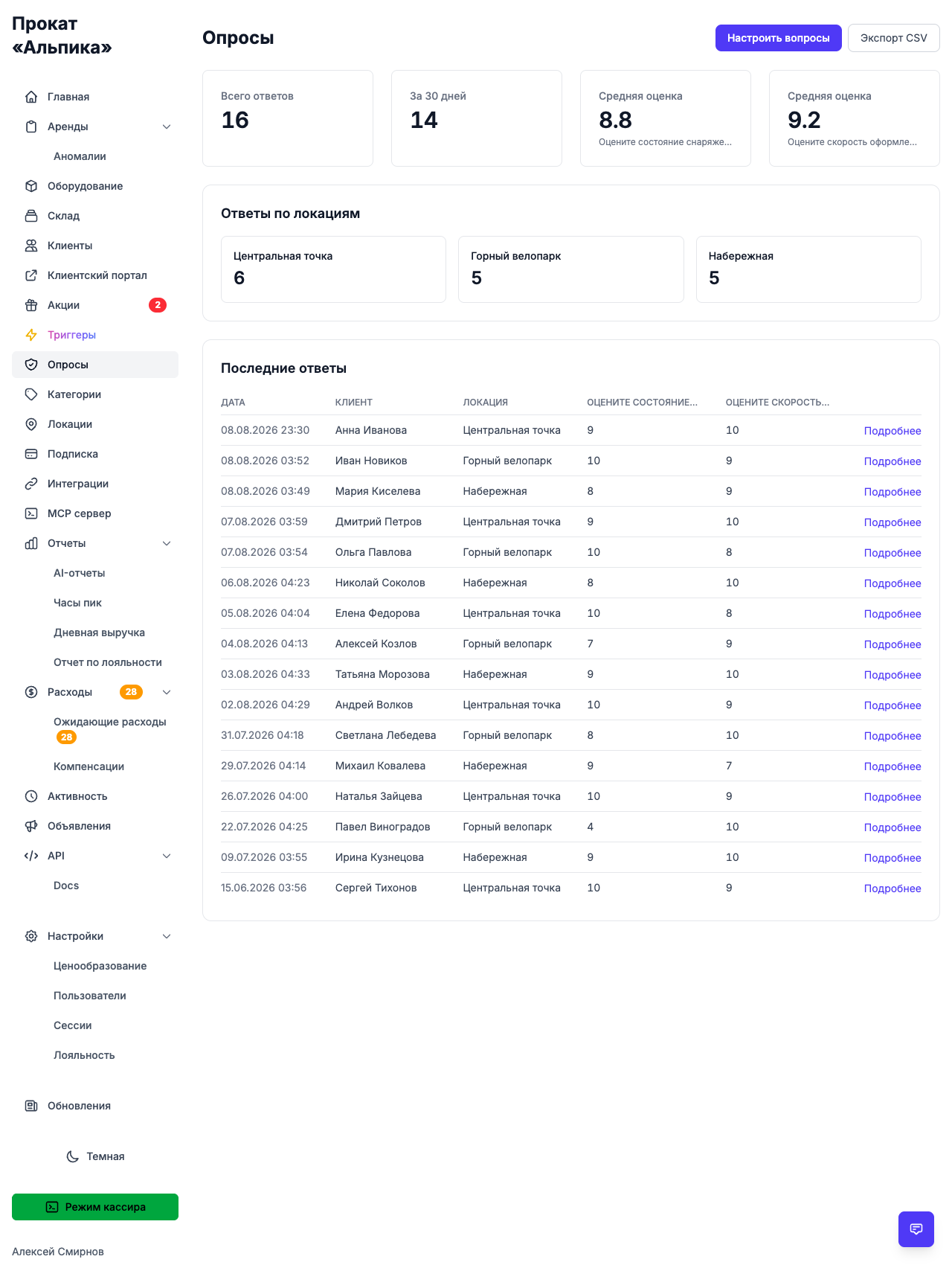
So you see specifics, not “the average across the board”: which pickup point gets the most complaints about equipment condition, or how the ratings for pick-up speed changed after you improved the process.
What to do with the answers
A survey is only as useful as your willingness to act on it:
- Catch problems early. A customer writes that a ski edge had a burr — you learn about it before a one-star review appears on the map;
- Close the loop. You can call or message the customer who left a negative answer: resolve the issue and thank them for their feedback. Those customers are the most likely to come back;
- Compare — ratings by location, dynamics by week and month, the effect of your changes: all of it comes from the data you collect;
- Don’t ignore the positives. “Fast and clear process” — that’s ready-made material for your social media and ads.
One answer in ten orders is already a signal, not a statistic. A regular survey turns scattered complaints into a clear picture: what breaks, where the process slows down, and what customers value most.
The bottom line
Rental isn’t just handing out equipment — it’s also the impression a customer leaves with. A survey right after the order is the cheapest way to measure that impression and improve it.
Everything in Turborent takes a few minutes to set up: create a survey, add questions, attach it to the “order completed” trigger — and links go out automatically, while answers land in a clear summary.
The main rule is don’t ask “for a tick”. Ask, read, and fix — then every next order becomes a bit better than the previous one, and customers feel that their opinion actually matters.